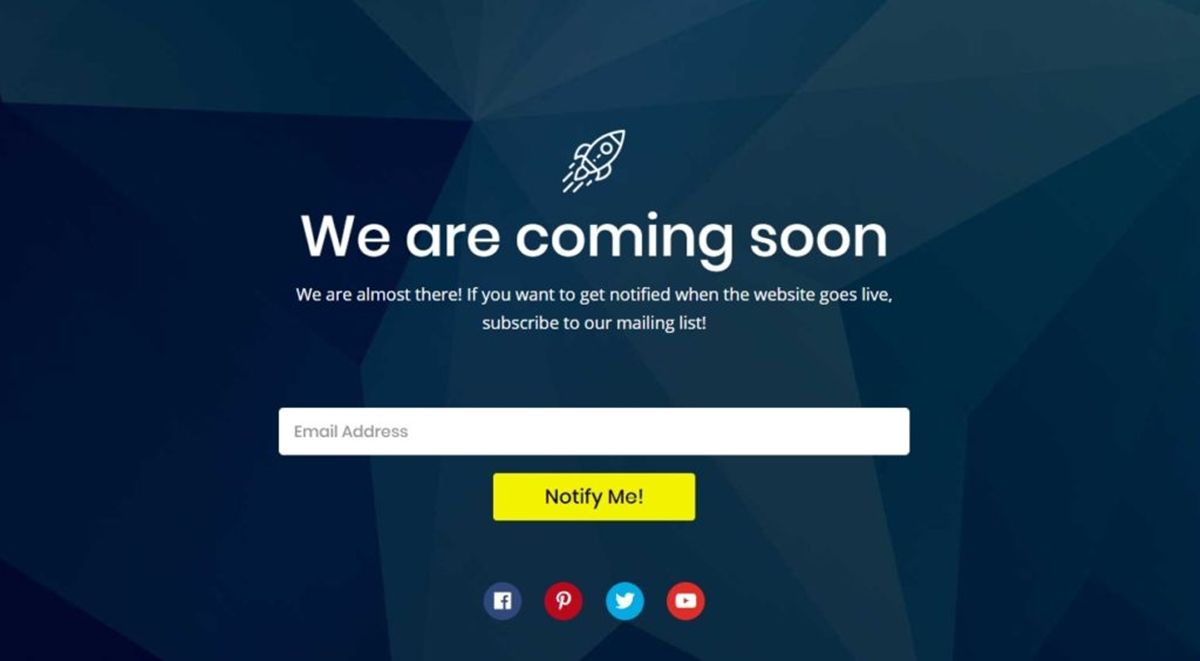
There are two practical ways to set up a coming soon page on Shopify.
You can use Shopify’s built-in password page if you want to keep the store closed while you finish setting it up. Or you can publish a regular landing page if you want people to find the launch, join your email list, or arrive from paid campaigns before the full store is ready.
The difference is visibility.
Password protection keeps the storefront itself behind a gate, although the password page can still appear in search. A public coming soon page is meant to be found.
This guide goes through the full setup, including the small details that are easy to miss and when each approach makes more sense.
Option 1: Use Shopify's Password Page
Shopify’s password page is the quickest option if you want to keep the store closed while you finish setting things up.
In Shopify admin, go to Online Store → Preferences → Store access → Password protection.
Turn it on, add a password if you want to let specific people preview the store, and write a short message for anyone else who lands there.
Once it’s saved, open the store in a private browser window and make sure the password page appears instead of the storefront. Shopify’s password-page documentation walks through the same setup.
One detail is easy to miss: the password page itself can still appear in search results. What search engines can’t crawl are the product, collection, and other storefront pages sitting behind it. So password protection hides the store, not necessarily every trace of the domain.
Customize the Password Page Without Code
You can usually do more with the default password page than people expect. Shopify includes an email signup section by default, and most current themes let you change the logo, headline, image, and layout directly in the theme editor.
Start there before adding another app.
If your theme doesn’t give you enough control, you can still edit the template code in some cases. That depends on the theme, though, and it shouldn’t be the first step for most stores.
Option 2: Create a Public Coming-Soon Landing Page
A public coming-soon page makes sense when you want people to find the launch before the full store is ready.
One thing to keep in mind: removing a page from your navigation doesn’t make it private. If the URL is published, people can still reach it directly. Hiding a link and restricting access are two different things.
New Store vs. an Existing Store Launching One Product
For a brand-new store, a clean setup is to keep your finished store theme unpublished while a simpler coming-soon theme stays live. Shopify only lets you publish one theme at a time, so the full version can sit safely as a Draft until launch day.
Keep unfinished products in Draft or schedule them to publish later. Do the same with pages you don’t want visible yet, and check your collections and sales channels so nothing slips through early. Shopify’s theme publishing guidance explains how published and Draft themes work.
If your store is already live and you’re only teasing one new product, don’t put the whole site behind a password.
Shopify’s Unlisted product status is a better fit for that. The product can still be opened with a direct link, but it stays out of site search, collections, recommendations, and the sitemap. That gives you a way to share or preview a product without hiding the rest of the store.
Password Page vs Public Landing Page
What a Coming-Soon Page Actually Needs to Do
A coming-soon page can't close the sale yet. Its real job is earning permission to contact the visitor again. Everything on the page should answer one of four questions:
- What's launching?
- When can I get it?
- Why should I care?
- What do I get for handing over my email?
Past that, keep it simple.
Think a real hero image or clip instead of a placeholder graphic, one or two genuine benefits, trust signals only if you actually have them, and a contact path for anyone who wants to reach you before launch.
Add Email Capture and Prelaunch Automation
If you’re using Shopify’s password page, start with the built-in email signup section. You probably don’t need another app just to collect addresses.
For a public landing page, Shopify Forms is the obvious first-party option. It supports inline and popup forms, tagging, analytics, and automations. It’s free, although you’ll need to install it separately.
Use your email platform’s own form when you want new subscribers to enter its segments or lifecycle flows immediately. If you’d rather make the signup more prominent, a custom popup can work better than leaving the form further down the page.
Shopify Forms also gives you control over what happens after someone submits. You can automatically subscribe them to marketing, add a separate consent checkbox, or collect the form without subscribing them at all. A consent disclaimer can be shown directly on the form.
For US commercial email, the FTC’s CAN-SPAM guide requires things like accurate sender information, a valid postal address, and a working opt-out. That isn’t the same as one universal consent rule, so check what applies to the countries and subscribers you’re actually dealing with.
Keep the form itself simple. An email address and one useful preference will usually tell you more than five fields you collected because you might need them later.
Tag prelaunch signups by source, then send a short welcome email confirming what they signed up for and when they can expect to hear from you again.
Add a Countdown Timer, Waitlist, Referral, or Preorder
Shopify’s native setup is enough for a basic coming-soon page. A dedicated launch app starts to make sense when you want extras like countdowns, waitlists, scheduled launches, or more control over the page itself.
For example, Coming Soon Pre-Launch Builder currently starts at $9.99 per month and includes multiple templates, email capture, CSV export, password controls, and a countdown. Higher tiers add features such as analytics and A/B testing.
LaunchX – Under Construction is free for Development and Partner stores, while regular stores currently start at $1.99 per month. It includes templates, countdowns, password protection, age verification, and scheduled launch controls.
Pricing and features can change, so check both apps on the Shopify App Store before choosing between them.
One small thing with countdowns: don’t use a timer that quietly resets every time someone visits. If you’re showing a launch date, make it the real one. And if that date moves, update the timer and tell the people who already signed up.
Coming-Soon Page Patterns Worth Copying
A few real approaches, drawn from Shopify's own coming-soon page examples, are worth studying for the pattern rather than the brand.
One approach uses very little copy and leans entirely on brand consistency and a single obvious email capture action.
Another leads with product imagery and a dominant "notify me" call to action rather than a wall of text.
A third states an exact release date and time and gives visitors a specific reminder action rather than a vague "coming soon."
All three do the same thing differently. They remove any doubt about what's launching, when, and what to do right now.
Coming-Soon SEO Checklist
The indexability of your prelaunch content depends on which setup you used. If you're using password protection, the storefront content behind it can't be indexed no matter what you do to the page, only the password page itself can appear in the results.
If you're using a public landing page, SEO is worth the effort.
Write a specific title and meta description rather than a placeholder. If you want the landing page publicly accessible by URL but excluded from search, Shopify supports hiding a page from search engines with its SEO hidden setting, which also excludes it from the sitemap and storefront search.
Otherwise, leave it indexable if early organic discovery is part of the launch plan. Add a real social sharing image and write actual crawlable copy rather than text baked into an image.
After launch, redirect or repurpose the prelaunch URL intentionally.
Shopify's sitemap updates automatically as pages, products, and collections change, so there's nothing to edit by hand. Just verify the final URL is indexed correctly in Google Search Console once it's live.
How to Announce the Launch
Plan the sequence before you need it:
- A teaser to your list a few days out
- A piece of real proof a day or two later
- A reminder the morning of launch
- The launch message itself
- A short follow-up to anyone who didn't convert the first time
Only use scarcity language if it's real. Send the same sequence across email and whichever social channels you built a following on before launch, and point every channel at the same destination.
Test Before Going Live
Confirm your store's timezone before relying on any countdown or scheduled publish time. Use Shopify's future publishing controls to schedule products, collections, and pages that should go live at a specific moment instead of flipping them manually.
- Submit the signup form yourself and confirm it lands with the right tags
- Click every link, including social share buttons and any password bypass link used for internal previews
- Run a mobile performance check before sending paid traffic to the page
On launch day, sequence it deliberately. Confirm the production theme and scheduled content are ready, remove password protection or publish the production theme, then send the launch email once the destination is actually live, not before.
Can I Run Google Ads to a Password-Protected Shopify Store?
No. Google Ads requires its crawler, AdsBot, to be able to access the destination page. Also, Google's own destination requirements list password- or authentication-protected pages as a disapproval reason.
If you're running Google Ads before launch, use a public landing page as the destination instead of a password-protected storefront.
How PagePilot Fits
PagePilot's role starts once you have a product to sell, not with the password page or the coming-soon page itself.
Generate Shopify product page templates for what you're launching while your list is still building, using AI-generated Shopify product pages from a product URL, so the page is ready the moment you flip the switch instead of being built the same day.
You can still edit the result before publishing.
PagePilot doesn't manage your password page, your email list, or your launch sequence, it's specifically for the product page itself, so use it alongside the steps above, not instead of them.
Conclusion
A password page and a public landing page solve different problems, and a single new product on an existing store is a different problem again, usually better solved with an Unlisted product than a passworded site. Get the email capture and launch sequence right first.
Once you have a product ready to show, try PagePilot free to generate the product page while your list is still building, so it's ready the moment you launch.
Frequently Asked Questions
How do I create a coming soon page on Shopify?
You create a coming soon page on Shopify by either enabling the built-in password page to keep storefront content out of search, or publishing a public landing page when you want the launch itself to be discoverable. The password page is a toggle in Online Store, then Preferences. A public page needs its own template or a stripped-down theme, with a headline, hero image, and email signup.
Are Shopify coming soon pages indexed by search engines?
Whether a Shopify coming soon page gets indexed depends on the setup. With password protection on, search engines can still find and display the password page itself, but they can't crawl or index the product, collection, and storefront pages behind it. A public coming-soon landing page can be indexed if you allow it, which is the better choice if part of your goal is early organic traffic.
Can I run Google Ads to a password-protected Shopify store?
You cannot run Google Ads to a password-protected Shopify store. Google Ads requires AdsBot to access the destination page, and Google disapproves destinations protected by a password or other authentication. Use a public landing page as the Google Ads destination instead if you're running paid traffic before launch.
How do I use a password-protected page and capture emails?
You capture emails on a password-protected page through its built-in Email signup banner. Turn on password protection, then open the theme editor and customize that section, which is already part of Shopify's password template by default. Because the protected storefront itself isn't available through organic search, you'll need another channel to send people there.
Which apps or templates should I use for a coming soon page?
The right app or template for a coming soon page depends on a specific gap in what your theme already provides. Shopify's password template already includes an email signup section natively. Add a dedicated app like Coming Soon Pre-Launch Builder or LaunchX only if you need something specific it doesn't, such as a built-in countdown, CSV export of signups, or age verification.
What happens to the rest of my store if I only publish a coming-soon landing page?
The rest of your store doesn't automatically stay private just because you publish a coming-soon landing page. Removing navigation links doesn't make other pages or products private. Only one theme can be published at a time, so keep your full production theme as an unpublished Draft, set unfinished products to Draft or schedule them, and keep unfinished pages Hidden. For a single new product on an already-live store, Shopify's Unlisted product status is usually simpler than passwording the whole site.
What is the SEO checklist for a Shopify prelaunch page?
The SEO checklist for a Shopify prelaunch page applies mainly to the public landing page option: write a specific title and meta description, decide indexing intentionally, add real crawlable copy instead of text baked into an image, and plan what happens to the URL after launch, redirected, repurposed, or removed. Shopify's sitemap updates automatically, so there's nothing to edit manually, just confirm the final URL in Search Console once it's live.